 Aquanode Docs
What travels with a setup
The mount path, the base image, and the startup script that rebuilds your environment on a new box.
When a setup moves to a new machine, three things decide what you get back. The Environment tab on any setup shows all three, along with the hardware the newest version was saved from.
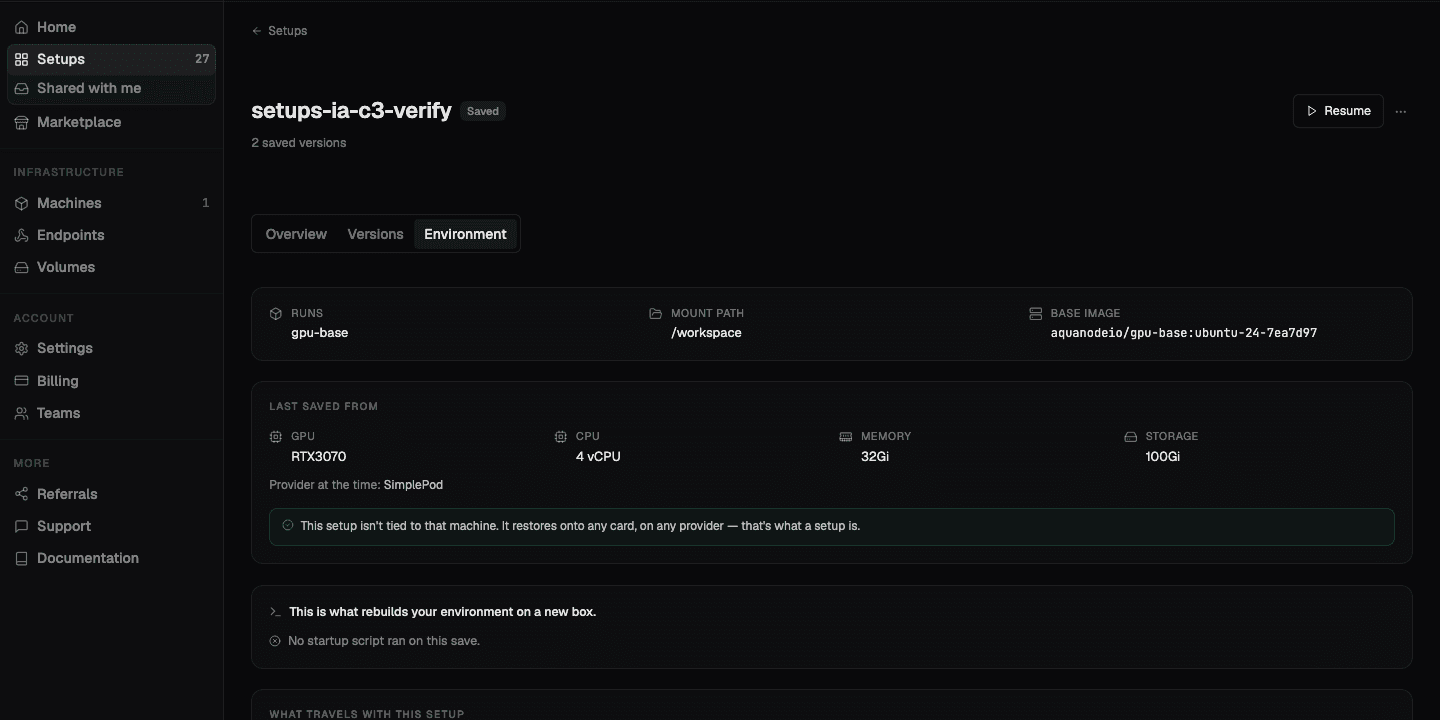
Mount path
Everything under the mount path travels. By default that is /workspace.
Work you keep outside the mount path lives on the rented machine, which means it is
gone when that machine is. Installing to a system path and then resuming somewhere
else is the most common way to lose work, so put what matters under /workspace.
Base image
The image the box boots from. A setup started from Notebook carries JupyterLab and PyTorch in the image. One started from An empty box carries nothing, and everything you installed lives on the disk instead.
Startup script
This is what rebuilds your environment on a new box. It runs once, the first time the box comes up, on every launch of the setup.
Use it for the things that are cheaper to re-run than to store: apt packages, pip installs, environment variables, a service you want listening. Manage scripts under Settings, Startup scripts in the console, and save one as a preset if you want it across setups.
Add it before or after launch
A startup script is not a launch-time-only decision. You can attach one to a setup that is already running, and it takes effect the next time the box comes up.
Last saved from
The tab also records the machine the newest version came off: GPU, vCPU, memory, storage, and the provider at the time.
That is history, not a requirement. As the console puts it, the setup is not tied to that machine. It restores onto any card, on any provider, which is the whole point of a setup.
Keeping the disk in sync
While a setup runs, its disk syncs so that a pause or an auto-pause has something current to capture. Syncing while you work is free. To force a tick immediately rather than waiting for the next one:
aq sync-now <name|id>Moving code onto the box
Two commands push your local working directory up to a machine you already rented:
aq push <name|id>              # send the working directory
aq run <name|id> -- <command>  # push, then run a command on the box
aq run is the one you want for an iterate-and-test loop. For a long job, add
--detach so the command keeps running after you disconnect, then read its output
later with aq logs:
aq run <name|id> --detach -- python train.py
aq logs <name|id>              # tail the most recent run
aq logs <name|id> -f           # keep streaming
aq logs <name|id> --list       # list this box's runs and their status
Getting a shell
aq ssh <name|id>That manages the keypair and writes a ~/.ssh/config alias for you, so plain
ssh <alias> works afterwards. SSH keys are managed under Settings, SSH keys.