 Aquanode Docs
SSH Keys
Add and manage the SSH keys used to access your machines. Every machine deployment requires a registered SSH key. Add yours once and reuse it across machines.
SSH keys let you securely connect to the machines you deploy. Aquanode stores your public keys and injects them into every machine at provision time, so you can ssh in without passwords. A key can also be shared with your team so teammates can deploy with it too.
An SSH key is required to deploy a machine
Every machine deployment must have an SSH key attached. Add at least one key here before deploying from the deploy flow: the SSH-key selector in the deploy flow reads from this list.
What you can do
- Register one or more public SSH keys (ed25519 recommended)
- See each key's name, fingerprint, type, and when it was added
- Track which keys are attached to which running machines
- Share a key with your team so teammates can deploy with it
- Remove keys you no longer use
Add an SSH key
Generate a key pair (if you don't have one)
On your local machine:
ssh-keygen -t ed25519 -C "your-email@example.com"This writes a private key (~/.ssh/id_ed25519) and a public key (~/.ssh/id_ed25519.pub). Keep the private key secret, you only ever share the public one.
Add the public key to Aquanode
- Go to SSH Keys in your account
- Click + Add SSH key
- Optionally give it a name (e.g.
Work laptop,Personal MacBook) - Paste the contents of
~/.ssh/id_ed25519.pubinto Public key - Click Add key
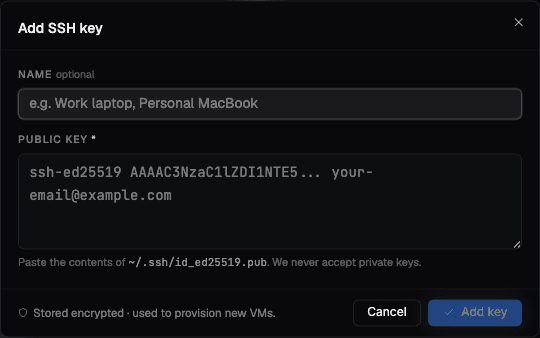
Public keys only
Aquanode never accepts private keys. Paste only the contents of your .pub
file. Keys are stored encrypted and used solely to provision new machines.
Connect to your machine
Once a machine is running, copy its SSH command from the deployment's detail page and connect:
ssh <login-user>@<machine-ip> -p <port>The key you registered is already on the box, so the connection succeeds without a password.
The login user is not always root
It is root on most providers, but not all: Hyperstack machines boot an
Ubuntu image that disables root login, so the key lands on ubuntu and
ssh root@... is refused with Please login as the user "ubuntu". The
deployment's detail page shows the right user for your machine.
If you use the CLI you do not have to think about it — aq ssh <name> reads
the login user recorded for the box and fills it in for you.
Managing your keys
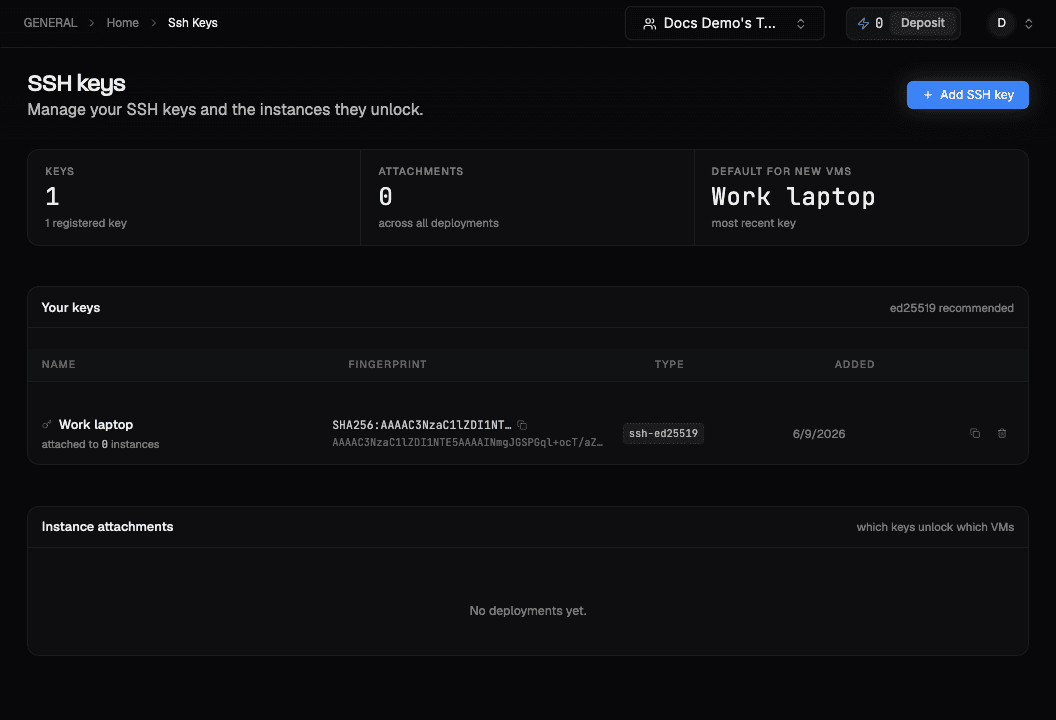
From the SSH Keys page you can see:
- Keys - how many keys you have registered
- Attachments - how many running machines each key unlocks
- Preselected on new machines - the last key you deployed with, pre-selected in the deploy flow
- Instance attachments - a breakdown of which key unlocks which machine
Deleting a key removes it from your account; it does not change machines that are already running.
Sharing a key with your team
Each key you own has a Share toggle. Turning it on shares the key with everyone on your active team, so a teammate can select it in their own deploy flow without you handing them the public key file directly. A key shared with you by a teammate shows in your Keys list marked as owned by them; you can use it to deploy, but only its owner can share, unshare, or delete it.